This article is part of a series. If you want to start at the beginning, you can start here. Alternatively, you can start with the git repository at the end of the last exercise here.
Add a service with Angular CLI
We are going to add a service called "FinancialsService". I like to keep all my services in a folder called "services". Type the following to add the FinancialsService to the services folder using Angular CLI:
ng g s services\financialsAdd components with Angular CLI
ng g c components\country-list
ng g c components\stock-listng g c components\fund-list
Type "ng serve" again so that we can see the results of any changes we make from now on.
Add the new components to the view
So that we can trap any errors early let's add the new components to the view.
First we add the CountryList and the StockList to the StocksHome component, and the CountryList and the FundList to the FundsHome component. Edit "stocks-home.component.html" and "funds-home.component.html" so that they contains only the following:
Create the data classes
Add a folder called "data" under the "app" folder.
Add a file called "model.ts" under the "data" folder.
Paste the following code into it:
export class Country{public CountryId:number ;public CountryName:string;}
export class Stock{public StockId:number;public CountryName:string;public CountryId:number ;}
export class Fund{public FundId:number;public CountryName:string;public CountryId:number ;}
export class MockAPICountryList{countrys:Country[];}
Create the Mock API
To keep things simple we are going to have a local or mock API. We can do this by just having static files in the "assets" folder with sample data in.
In the "assets" folder create a file called "country.json". Paste in the following contents:
{"countrys":[{
"countryId":1,
"countryName":"England"},{
"countryId":2,
"countryName":"France"},{
"countryId":3,
"countryName":"Germany"},{
"countryId":4,
"countryName":"Spain"},{
"countryId":5,
"countryName":"Wales"}
]}
Add the API location to environments
When an App goes into production it will usually have a different API source to the one we use in development. There can also be other differences between development and production. We store the different settings in an "environment" object.
In the "environments" folder there is a file for local development called "environment.ts". The file contains an object called "environment" which can be accessed anywhere in Angular. We can also add whatever properties we want to the object and they too can be accessed anywhere.
Add a property called "apiUrl" to the object so that it becomes:
export const environment = {production: false,apiUrl:"http://localhost:4200/assets/"};
Now we can call the mockApi from our services to provide data to our components.
Add httpClient to app.module.ts
Since we are going to use the Angular HttpClient we need to add the HttpClientModule it to "app.module.ts".
Add the following to the import statements at the top of the file:
import { HttpClientModule } from '@angular/common/http';and then add "HttpClientModule" to the imports array:
imports: [...,HttpClientModule,...],
Add code to the service
Now we need to configure our service to get data from the mock API. Paste the following code to replace the contents of the "country.service.ts" file:
import { Injectable } from '@angular/core';import { environment } from 'src/environments/environment';import { HttpClient } from '@angular/common/http';import { Observable } from 'rxjs';import { MockAPICountryList } from '../data/model';
@Injectable({providedIn: 'root'})
export class FinancialsService {countryUrl = `${environment.apiUrl}country.json`;constructor(private httpClient:HttpClient) { }getCountrys():Observable{ return this.httpClient.get(this.countryUrl); }}
Call the service from our components
Finally we can call the service from our component.
Paste the following into "country-list.component.ts":
countrys:Country[];
constructor(private financialsService:FinancialsService) { }
ngOnInit(): void {this.financialsService.getCountrys().subscribe(x => {this.countrys = x.countrys;});}
Add any required imports to "country-list.component.ts".
Paste the following into "country-list.component.html"
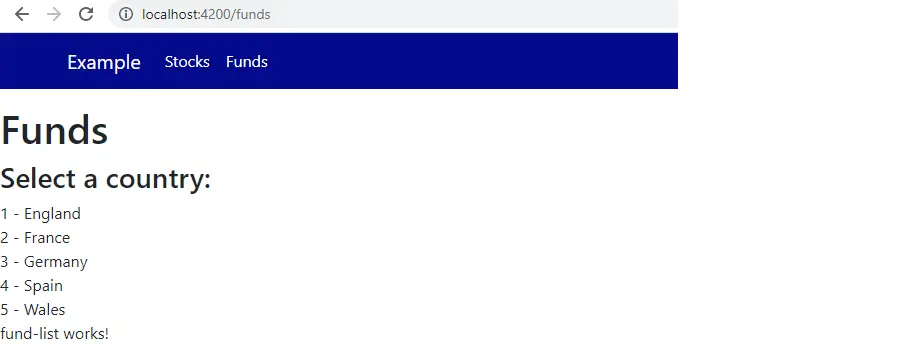
The app should now look this :
Summary
We have connected a component to a service to get data. In our case, to keep things all within Angular, it was just static data from a file in the project. However, it could easily have been from an external API driven from a database. Later on, I will switch the API to be a Microsoft .Net Core API, getting data from a SQL Server 2019 database.
If I lost you along the way you can access the git repository for the finished article here.
Next
The next step is to make a select (drop down) component from the country-list component, so that the user can choose which country he/she wants to see Stock or Fund data for.